
Firewall and ports mean much if You wan't to host games.
Firewall may cause incoming data from reaching Your computer so other player will be unable to joint Your game.
Firewall can be anywhere, as software (windows firewall or some 3rd party firewall) and as hardware (modems/routers).
Here are port for Warcraft, World of Warcraft, Diablo and Starcraft. This ports need to be unblocked so games will good.
Diablo and Warcraft II Battle.net Edition:
Allow port 6112-6119 TCP and UDP out and in
Showing posts with label Firewall. Show all posts
Showing posts with label Firewall. Show all posts
Feb 2, 2010
Firewalls And Hosting Games For Warcraft, WoW, Diablo and Starcraft

Jul 25, 2009
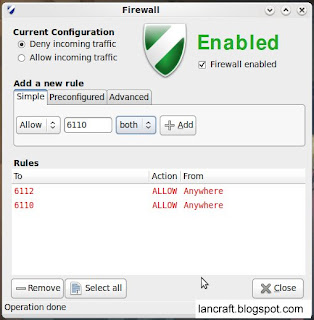
Setting Up Ubuntu Firewall For Warcraft 3
Ubuntu's firewall is by default installed and off, so You don't need to worry that port 6112 will be blocked by firewall.
If You firewall is on then You need to unblock port 6112.
To do that first You need to install firewall graphical interface, open Terminal and type:
Then go to System > Administration > Firewall configuration.
Then add new rules.
If You want to allow anyone to join use simple, if You want to allow only some people use advanced and add they ip (if You are hosting game)
Allow port 6112 and 6110 both for udp and tcp.
If You have still problems with joining and hosting game try setting curent configuration to "Allow incoming traffic"
Read More...
If You firewall is on then You need to unblock port 6112.
To do that first You need to install firewall graphical interface, open Terminal and type:
sudo apt-get install gufw
Then go to System > Administration > Firewall configuration.
Then add new rules.
If You want to allow anyone to join use simple, if You want to allow only some people use advanced and add they ip (if You are hosting game)
Allow port 6112 and 6110 both for udp and tcp.
If You have still problems with joining and hosting game try setting curent configuration to "Allow incoming traffic"

Mar 7, 2009
Setting Up Firewall in Windows XP
To use any Warcraft 3 Lan Emulator you need to unblock port 6112, this is easy to say but not easy to do for som computer users.
When You Start Lancraft or other Wc3 Lan Emulator Windows Firewall shout ask You to allow it in Firewall.
If it doesn't use next:
To enter Windows Firewall go to Control Panel
Start>Control Panel
Then enter "Windows Firewall" icon
Go to "Exceptions" tab and click "Allow program" button and add lancraft.exe
When You add lancraft.exe (or battle.net.exe if You are using Battle.net).
Then click "Add Port..." button and add port 6112
Feb 10, 2009
Setting Up Firewall in Windows 7/Vista
To use any Warcraft 3 Lan Emulator you need to unblock port 6112, this is easy to say but not easy to do for som computer users.
When You Start Lancraft or other Wc3 Lan Emulator Windows Firewall shout ask You to allow it in Firewall.

If it doesn't use next:
To enter Windows Firewall go to Control Panel
Start>Control Panel
Then enter "System and Security" category
 And enter Windows Firewall
Go to "Allow programs or feature through Windows Firewall" click "Allow another program..." button and add lancraft.exe
When You add lancraft.exe (or battle.net.exe if You are using Battle.net) check "Home/Work (Private)" and "Public" than click OK

*This manual is from Windows 7 but it shout work in Windows Vista. Read More...
Subscribe to:
Posts (Atom)


